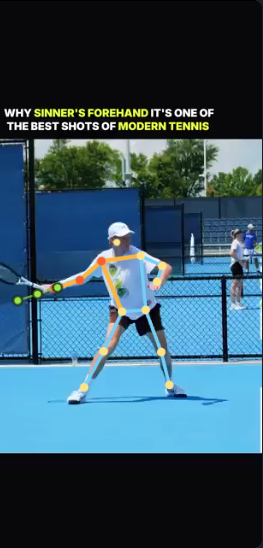
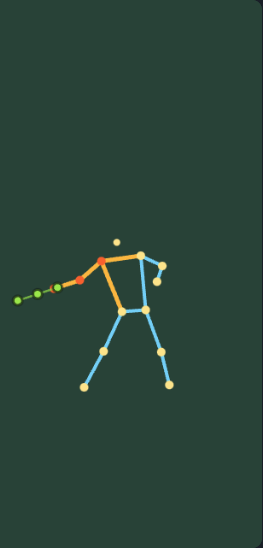
Quick start
- Load a clip — upload MP4/MOV or import from YouTube (side view works best).
- Set stroke type — forehand, backhand, or serve, plus handedness.
- Analyze stroke — for your own clips, wait for the progress bar to reach 100% (demo buttons skip this).
- Scrub or play — use the timeline, step buttons, or ▶ to watch the overlay.
- Read Swing review — scores and tips appear below the video after analysis.
Forehand AI (separate tool)
For coaching feedback on technical elements (unit turn, load, swing loop, racket face,
spacing, contact, follow-through, grip), open the dedicated
Forehand Analysis tool. It uses TennisStrokeLab AI vision
on sampled frames and does not replace pose-based Stroke analysis.
Stroke analysis page
Use this page for a single player (Player 1).
- Choose video — local file from your device.
- YouTube import — paste a URL; set start/end times to trim a segment (leave end blank for the whole clip, up to 30s).
- Viewer tabs — Split (video + stick figure), Overlay (skeleton on video), Video only, or Stick figure only.
- Overlay toggles — racket dots, purple racket path, angle guides, leg angles at load and finish.
- Green racket dots — drag to fine-tune if detection is slightly off (Advanced calibration for global tweaks).
- Start fresh — clears analysis and resets the workspace without closing the app.
Compare players
Load Player 1 (Stroke analysis or a top-bar demo), then open Compare players for Player 2.
- On Compare, use Load demo for Player 2 to pick a second demo, or upload / YouTube.
- While on Compare, choosing another top-bar demo loads it as Player 2 when Player 1 is already set.
- Demo analysis is usually preloaded — if not, click Compare Player 1 & Player 2.
- Play each video separately or use Both to run them together.
- Scrubbing syncs both players when both are analyzed.
- Use zoom controls under each video to match framing.
Demo clips
Buttons in the top bar load pro examples (Sinner, Alcaraz, Novak).
- Demos set stroke type and handedness automatically, and analysis is preloaded — no need to click Analyze stroke.
- To compare two demos: load Demo A (Player 1), open Compare, then load Demo B as Player 2.
- Sinner Serve imports the full ~27s slow-motion serve; analysis is ready shortly after the clip loads.
- After import, confirm the status shows the expected clip length and “analysis preloaded”.
Tips for best results
- Camera angle — side or three-quarter view with the full body in frame.
- Clip length — one stroke, roughly 3–15 seconds (serves can be longer).
- Lighting — avoid heavy backlighting or extreme blur.
- Slow motion — works well; the app adjusts scoring for slow-mo clips.
- Hard refresh — if something looks stuck, reload with
?v= plus the build number in the header.
YouTube setup
The local server needs yt-dlp for imports. ffmpeg helps trim clips accurately.
- Install:
pip3 install --user yt-dlp and brew install ffmpeg
- Start the app with
start.command and keep that terminal window open.
- If a Short imports too short, restart the server after installing ffmpeg and load the demo again.
Troubleshooting
- “Could not detect enough poses”
- Re-run Analyze, or upload an MP4 instead of YouTube. Make sure the full body is visible in side view.
- Clip shorter than expected
- Re-import with ffmpeg installed, or upload the video file directly.
- Analysis seems frozen
- Long clips show a % progress bar — wait until it reaches 100%. Check the build tag in the header matches a recent refresh.
- Purple path missing on forward swing
- Re-analyze after a hard refresh; path is built from tracked racket dots across the full clip.